
How to Generate PDFs from Your Adalo App

Adalo has no built in way to create a PDF. You add a Custom Action that posts your record data to a PDF endpoint, the endpoint returns a pdf_url, and you save that URL on the record so your user can open, download or email a real PDF file.
If you have ever needed your Adalo app to produce an invoice, a receipt, a quote or a certificate, you have probably discovered the same thing everyone else does: Adalo has no built in way to create a PDF. This guide shows you how to add it. No code, no Zapier subscription, and about ten minutes of setup.
What people usually try first, and why it fails
What you want is one thing: send record data out, get a real PDF file and a link back.
- Screenshots — poor quality, captures the rest of the screen.
- Zapier or Make — a paid subscription plus several seconds of delay.
- HTML in a WebView — renders on screen, no file to save or email.
What you will build
A "Download Invoice" button that posts the record, gets a PDF link back, saves it, and opens it.
- An Adalo app with a collection holding the document data (Orders, for example)
- A free Webnux Tools account
- Ten minutes
Step 1: Design the PDF once
Go to the PDF Generator and design your document. This is the part you do visually, and you only do it once.
Pick whether your document has a list of items in it:
- No list. One person, one total. Certificates, letters, confirmations.
- Yes, it has a list. Invoices, receipts and quotes with several product rows.
Save your template and copy its ID
Set your heading, your colours, your logo, and the fields you want printed. When it looks right, click Save template.
Your template appears under "Your saved templates". Click Copy ID on it. That ID is now on your clipboard and you will need it in Step 3. It looks like this:
3f1c8a10-5f3b-4a1e-9c77-5d1f0b2a91d4Step 2: Create the Custom Action in Adalo
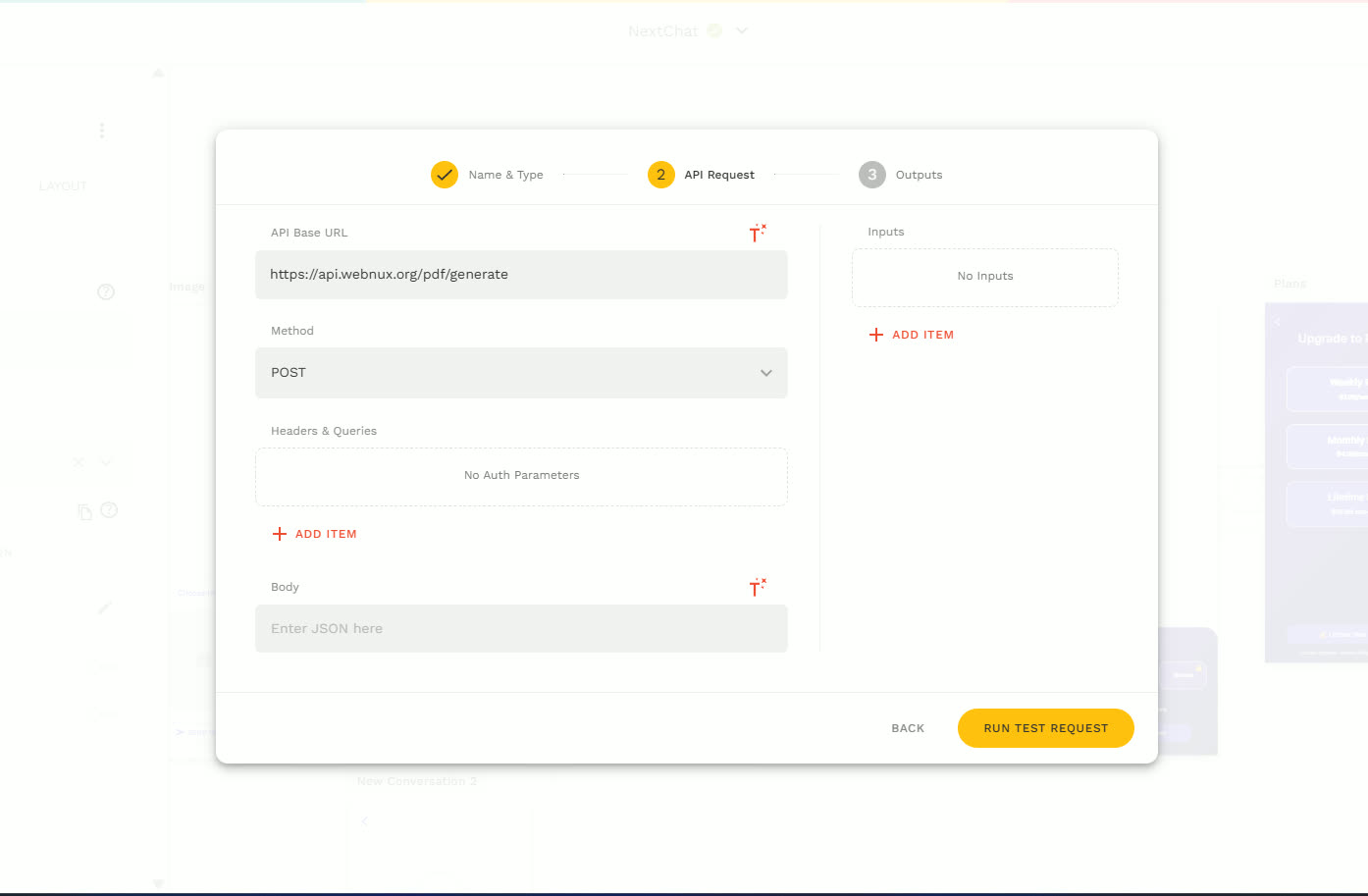
In the Adalo editor, select the button that will generate the PDF, then:
- 1.Click Actions → + New Custom Action → API Request
- 2.Action Name: Generate PDF
- 3.Method: POST
- 4.API Base URL:
https://api.webnux.org/pdf/generate
Step 3: Add the headers
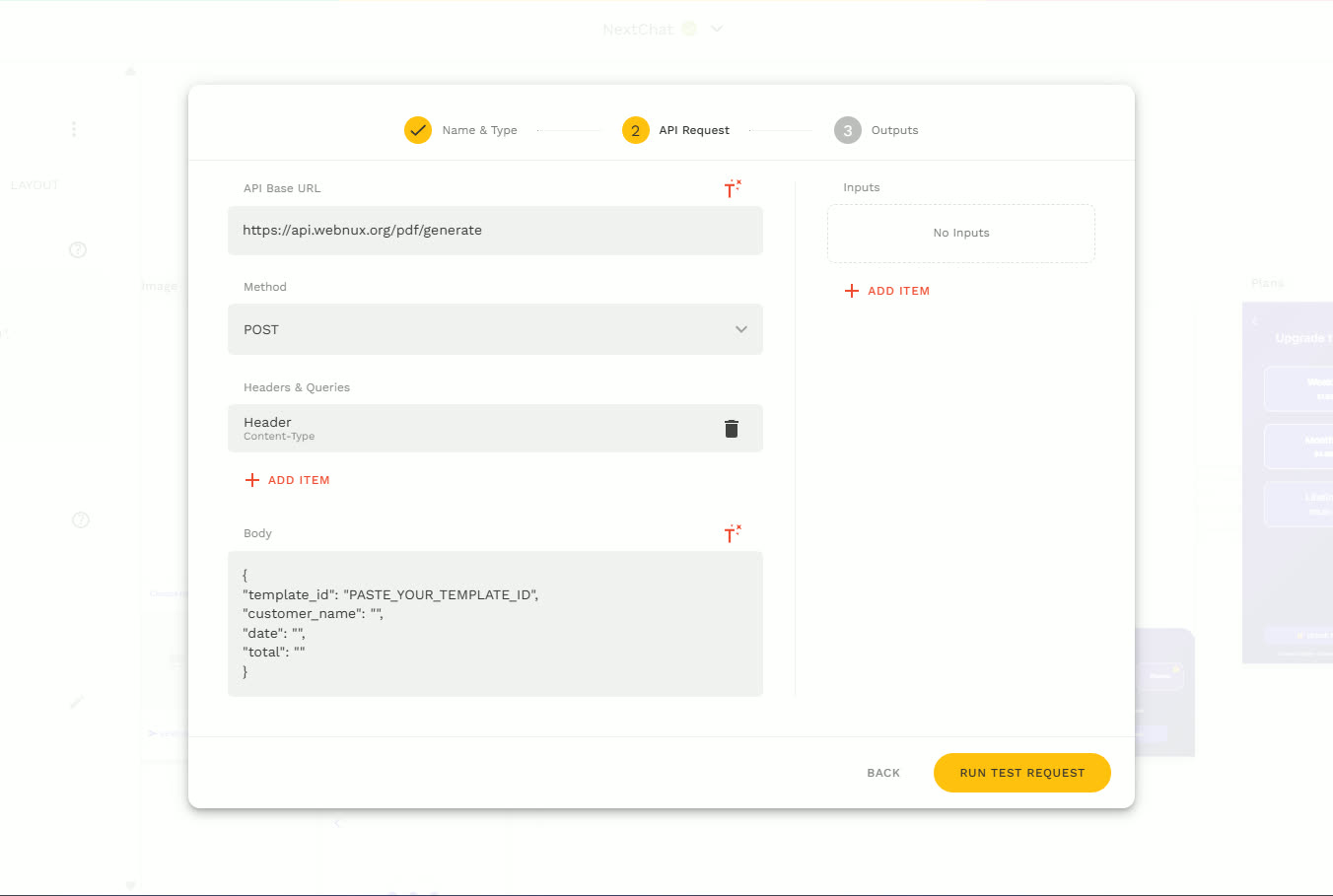
Under Headers & Queries, click + Add Item and choose Header. There are only two headers, and only one of them is required:
Content-TypeRequiredapplication/jsonWithout this the request fails silently and nothing happens when the button is tapped.
x-api-keyOptionalyour API key from the PDF Generator pageOnly needed if you want every generated PDF saved in your account history. The PDF still generates without it.
Step 4: Tell it what to put on the document
Find the Body field of the Custom Action and paste this in:
{
  "template_id": "PASTE_YOUR_TEMPLATE_ID",
  "customer_name": "",
  "date": "",
  "total": ""
}template_idRequiredthe ID you copied in Step 1Tells the generator which design to use.
customer_name / date / totalOptionalMagic Text from your recordUse the same names as the field labels in your template. Add or remove rows freely.
itemsOptionala list of rows: name, description, quantity, priceOnly for invoices, receipts and quotes with several product lines.
Map each value to Magic Text
Click into each empty value and pick the Magic Text from your record: customer_name → Current Order > Customer Name, date → Current Order > Created Date, total → Current Order > Total.
Names on the left are the labels printed on your template. Magic Text on the right is where the real value comes from.
Step 5: Test it and save the result
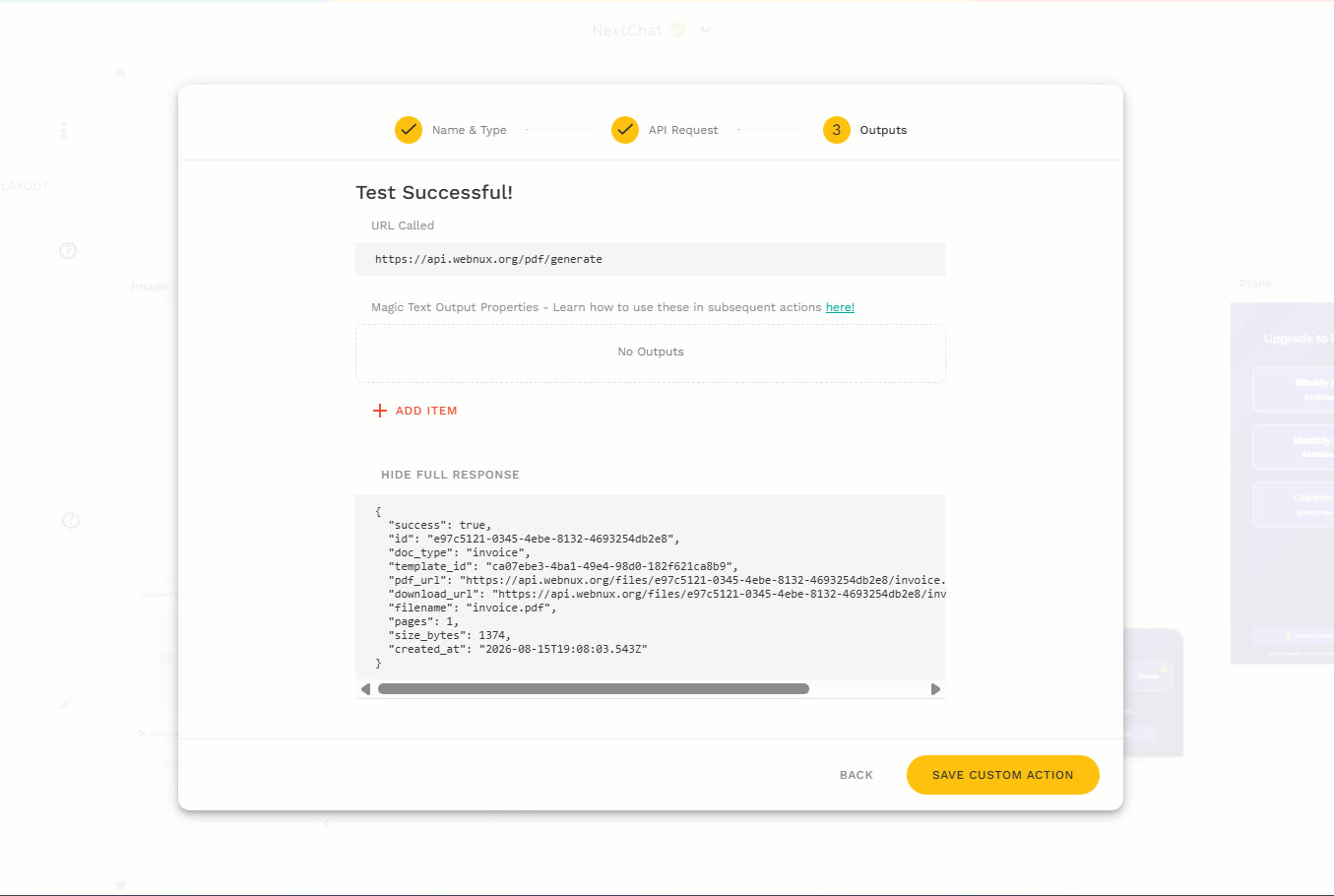
Click Run Test Request. A successful test returns:
pdf_url— the direct link to the PDFdownload_url— same file, prompts a downloadfilename,pages,size_bytes,created_at— extra details you can ignore
Save the link on the record
Add pdf_url as an output property. Then in your Orders collection add a Text property called PDF Link and save pdf_url into it.
Step 6: Show the PDF to your user
Add a second action on the same button: Link, pointed at the PDF Link property.
- The link opens in the device PDF viewer on iOS and Android.
- On a web build it downloads instead.
- To email it, use the same PDF Link property inside an email action or your email tool.
Handling invoices with multiple line items
A document with several products needs its items to arrive as a list, not separate fields.
- Do not drag an Adalo list or relationship (like Current Order > Products) straight into the body.
- Adalo does not send relationships in a format the generator can read, this is where most people get stuck.
- The simple way: build an Items JSON Text property as items are added, then map it to
items. - The proper way: use an External Collection so the item rows come through as real data.
What else you can generate
The same setup produces receipts, quotes, certificates, reports and letters.
- Each item row accepts
name,description,quantityandprice, up to 500 rows. - Long documents paginate automatically.
- Swap the template ID in the body to change document type, everything else stays the same.
- Set an accent colour, add your logo, footer payment terms, and extra label/value rows.
Common mistakes and how to diagnose them
The PDF is blank or fields are missing.
- Likely cause:
- Your Magic Text is not mapped, or the field names in the body do not match the ones in your template.
- Fix:
- Check both the body keys and the template field labels so they match exactly.
The action fires before the record saves.
- Likely cause:
- If you create a record and generate the PDF in the same tap, the data may not exist yet.
- Fix:
- Put the generate action on the next screen, or on a separate button.
You get HTML back instead of a PDF.
- Likely cause:
- Wrong URL.
- Fix:
- It must be https://api.webnux.org/pdf/generate.
Nothing happens at all.
- Likely cause:
- Missing the Content-Type: application/json header.
- Fix:
- Add the header with name Content-Type and value application/json.
It works in the editor but not on mobile.
- Likely cause:
- The PDF link is only returned by the action, never stored.
- Fix:
- Check that the PDF Link property is actually being saved to the record, not just returned by the action.
When you need an Adalo expert
Plenty of Adalo issues are straightforward to fix yourself with the steps above. It usually pays to bring in an experienced Adalo developer when the problem sits deeper in the build:
- Your invoice needs line items pulled from a relationship or cart rather than a single text field.
- You need the PDF emailed automatically, attached, or archived per customer.
- The document layout has to match an existing legal or accounting format exactly.
Related guides
How to set up a custom action in Adalo
Create an Adalo custom action step by step: method, URL, headers, body with magic text, and how to use the response on the next screen.
How to connect an API to Adalo
Connect a REST API to Adalo with custom actions or external collections, including the response shape, authentication headers and pagination Adalo expects.
Frequently asked questions
Can Adalo create PDFs natively?
No. Adalo has no PDF renderer, so the file has to be generated outside the app and returned as a URL.
Where is the PDF stored?
The generator hosts the file and returns a direct link. If you send your API key, the PDF is also saved in your account history.
Can I include a list of line items?
Yes. Send an items array of rows with name, description, quantity and price, either from a Text property holding JSON or from an External Collection.
Can users download the PDF in the app?
Yes. Save pdf_url to a Text property and add a Link action to it. On mobile it opens in the device PDF viewer, on web it downloads.
Do I need Zapier or Make?
No. A single Adalo Custom Action posts straight to the PDF endpoint, so there is no extra subscription and no multi-second delay.
How long does setup take?
About ten minutes: design the template once, add the Custom Action, map your Magic Text, then save and link the returned URL.
Webnux Tools is an independent product by Webnux Ltd. It is not affiliated with, endorsed by, or sponsored by Adalo, Inc. Adalo is a trademark of Adalo, Inc.